Remote Monitoring
Remote monitoring facilitates the monitoring and management of distributed Orchestra or Juno instances. When the panel is opened, an overview of all configured nodes is displayed. Each node is represented with a color scheme to indicate its current state.
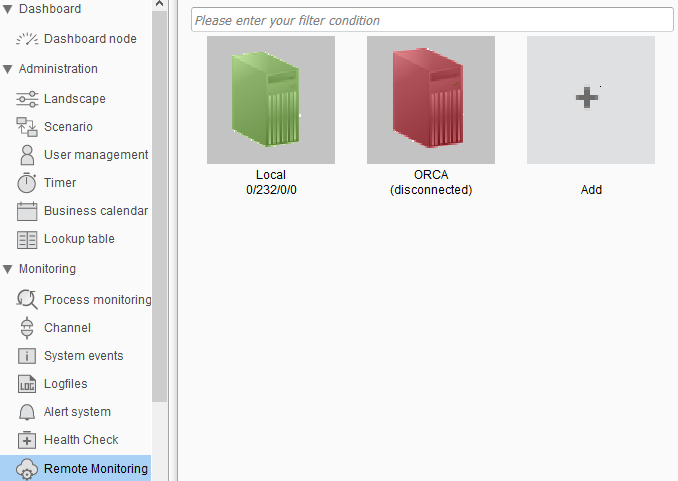
The color scheme used in this panel is detailed in the following table:
| Color | Description |
|---|---|
| Green | The node is reachable by the current Orchestra instance, and there are no warnings or aborted processes. |
| Red | The node cannot be reached, or an error in remote communication has occurred. Additional information, if available, may be displayed as a tooltip when hovering over the node symbol. Possible reasons for this state can include network problems, node shutdown, or insufficient user rights to access the remote node. |
| Yellow | The node is reachable by the current Orchestra instance. The yellow state indicates that there are processes in the state aborted or warning. |
-
Clicking on a node's symbol will open a new browser window displaying the monitor of the remote Orchestra node.
-
Please use the context menu of a node to delete or edit the corresponding node.
Add Node Wizard
New nodes can be added by using the + icon displayed in the list of available nodes. Clicking this button will initiate a wizard to guide you through the creation process.
The following image shows the first step of the wizard:
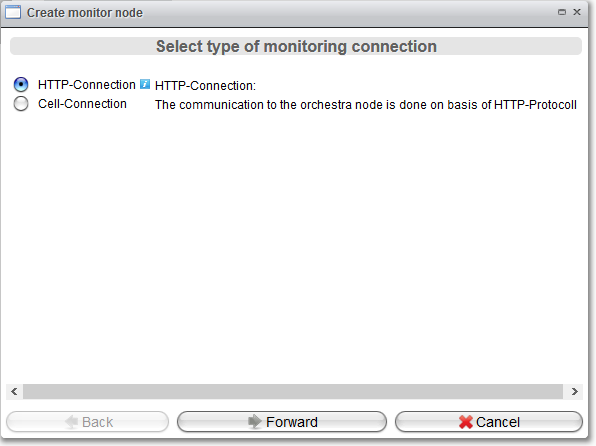
Wizard: Monitoring connection type
In this first step, you can select the type of remote monitoring connection:
- An HTTP connection should be selected if the remote Orchestra system is in the same network and can be reached over the same network.
- A Cell connection should be used if direct access to the other node over HTTP is not possible. In this case, all communication is tunneled over an existing cell connection. Note: This mode expects an existing cell connection that can be used.
Click Forward to proceed to the next settings page.
HTTP-Connection Settings
If the HTTP connection is chosen, the following wizard page will be displayed:
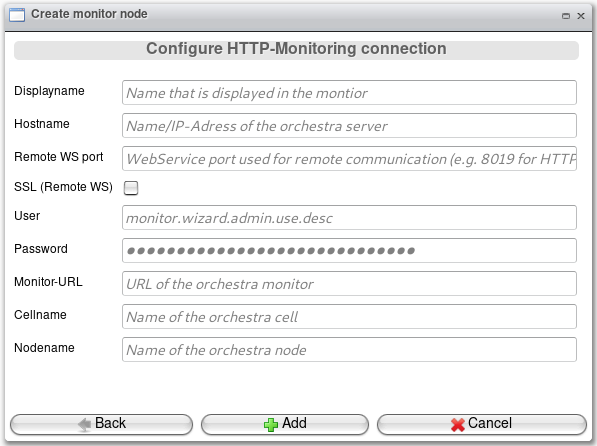
Wizard: HTTP-Connection settings
| Field | Description |
|---|---|
| Displayname | The name of the node as displayed in the monitor. |
| Hostname | Host or IP address of the remote Orchestra node. |
| Remote WS Port | The port of the remote host used to invoke functions via web services. This port is either servlet.http.port or servlet.https.port, depending on SSL activation. |
| SSL | Indicates whether SSL is activated. If activated, communication will use secured HTTP connections; otherwise, a standard TCP connection will be used. |
| User | The name of a technical user who will be used to connect to the remote host. The user requires the role Remote.Administrator. |
| Password | The password of the technical user who will be used to connect to the remote host. |
| Monitor-URL | The URL to the Orchestra monitor of the remote host, e.g., https://orchestra:8080/orchestra. |
| Cellname | The name of the cell to which the remote node belongs. |
| Nodename | The name of the node. |
The remote user must have the role Remote.Administrator. It is sufficient for the user to possess this role; it is not required that the user also be an administrator.
- Be aware that, by default, the user "admin" will not have this required role!
- In rare situations, the remote API of the Orchestra node is used to obtain information about the state of the node. In this case, the currently logged-in user is passed through (impersonation). This means that the user logged in must exist on the remote system as well. For example, if you log in with the user "Hugo1" at node 1 and want to monitor node 2, "Hugo1" must also exist on node 2. Additionally, the remote user needs the role Remote.Impersonation.
Cell-Connection Settings
If the cell connection is selected for the monitoring connection type, the following wizard page will be displayed:
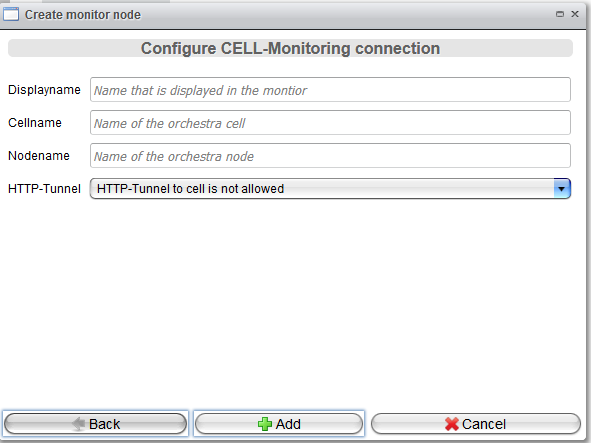
Wizard: Cell-Connection Settings
| Field | Description |
|---|---|
| Displayname | The name of the node as displayed in the monitor. |
| Cellname | The name of the cell to which the remote node belongs. |
| Nodename | The name of the node. |
| HTTP-Tunnel | Defines if HTTP tunneling is enabled or disabled. If HTTP tunneling is allowed, the local Orchestra node will act as an HTTP tunnel. It will open a local HTTP port, and packets received on the local port will be tunneled automatically to the monitor of the remote Orchestra node. This mode is useful when direct access to the remote node is not possible. |
In rare situations, the remote API of the Orchestra node is used to obtain information about the state of the node. In this case, the currently logged-in user is passed through (impersonation). This means that the user logged in must also exist on the remote system. For example, if you log in with the user "Hugo1" at node 1 and want to monitor node 2, "Hugo1" must also exist on node 2. Furthermore, the remote user needs the role Remote.Impersonation.
HTTP-Tunnel
When a browser window to a remote node (of type cell) is opened, an HTTP tunnel to the remote cell will be created automatically.
The concept of the tunnel is illustrated in the following diagram:
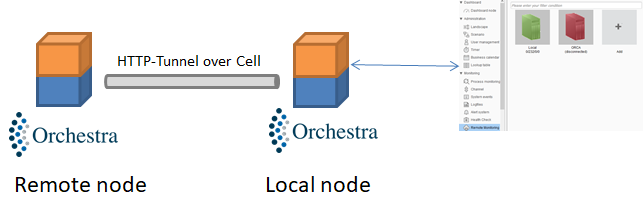
Once the user opens a monitor to the remote node, a tunnel will be established between the local and remote nodes to transfer any HTTP traffic between the local browser and the remote Orchestra node. Technically, the browser is redirected to a port on the local node that receives and forwards all data over the cell connection to the remote node. On the remote node, the data packets are sent to the monitor of that node. The reverse process is managed similarly.
Configuration of the HTTP tunnel must be performed in the environment settings view. The parameters can be found in the configuration group "Remote Monitoring". There are two sets of settings: local and remote. The local settings configure the local Orchestra node that opens the tunnel, while the remote settings control the behavior of a node regarding remote monitoring. The latter must be configured on the remote node.
Local Settings
| Parameter | Description |
|---|---|
| cell.tunnel.certificate.required | Defines whether certificate-based authentication is required (=true) or not. If enabled, the browser must have a certificate that can be authenticated by Orchestra. |
| cell.tunnel.socket.timeout | Defines the timeout in seconds before an inactive tunnel connection is automatically released. |
Remote Settings
| Parameter | Description |
|---|---|
| cell.tunnel.mode | Defines whether the current node allows and accepts monitoring over a tunnel (CLIENT) or not (DISABLED). |
| cell.tunnel.client.http.port | Defines the HTTP port of the local Orchestra monitor. |
| cell.tunnel.client.http.protocol | Defines the protocol to be used when accessing the local Orchestra monitor. For TCP, an unsecured connection is used. |
| cell.tunnel.client.http.url.fragment | Defines the URL path fragment to be used when accessing the Orchestra monitor in client mode. |
For remote monitoring over an HTTP tunnel, only secure connections are supported.